Using Codex
Open your local project’s menu → Edit project → Add folder. Choose My Signup Page, then Save.
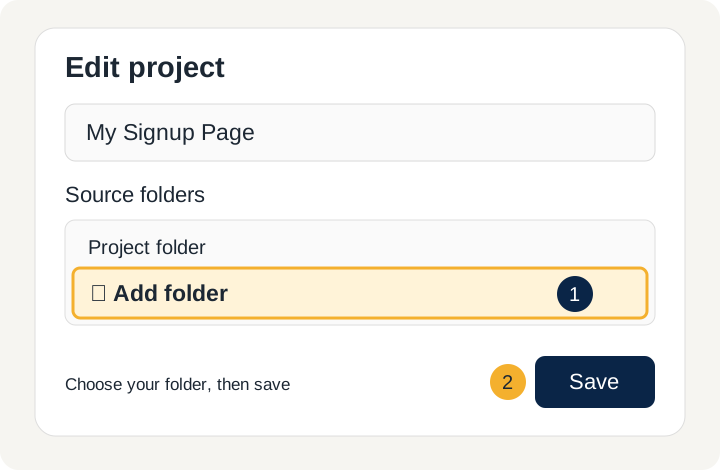
Illustrated click guide. Tap to enlarge.
LET’S BUILD YOUR SIGNUP PAGE
First, we connect your accounts together. Then, you use a prompt to build your page.
Keep this guide open during the live training. We’ll move through one step at a time, using your own document and accounts.
SEE IT IN ACTION
You may have seen these through my Instagram videos. Each page asks for an email before unlocking the resource.
The same idea works for your own PDF or Word document: introduce it, collect an email, then give access.
STEP 1
GitHub stores your website files. Vercel runs the website. Systeme.io saves and tags the email addresses.
STEP 2
https://github.com/your-username/my-signup-page.Save that link in Notes or a document. You’ll paste it into the connection prompt in Step 5. You only need to provide it once. Copy the repository page’s address, not your GitHub profile or the new-repository form. The AI will create the website files later.
STEP 3
There is no homepage yet, so the website address may show “404 / Not Found.” That is expected at this stage. If the import itself fails, pause here so we can check the connection together.
STEP 4
SYSTEME_API_KEY as the name. Paste your key as the value and select Production. Save it.Enter your key directly in Vercel; do not put it in the AI chat, a GitHub file or a shared document. If you change a setting after a deployment, deploy again for it to take effect.
The AI only needs to know: “My key is saved in Vercel as SYSTEME_API_KEY, and my tag is Download.”
STEP 5
Open the My Signup Page folder you created in Step 1 in one of these apps:
Open your local project’s menu → Edit project → Add folder. Choose My Signup Page, then Save.
Illustrated click guide. Tap to enlarge.
Open the Code tab. Select Local, then click Select folder beside it and choose My Signup Page.

Illustrated click guide. If a folder is already selected, click its name to choose a different folder. Tap to enlarge.
Replace the bracketed link with your repository link.
Check whether you can access my GitHub repository at [PASTE YOUR REPOSITORY LINK], install any missing tools, and guide me through any sign-in I need to complete. Connect this folder to that existing repository, keeping the document already here, and confirm you’re ready to build.
The app handles the technical checks. You complete any sign-in or permission request it opens. Keep using this same folder and chat for the next step.
STEP 6
Your document is already in the folder and GitHub is connected. Add your name below and paste the prompt into the same chat.
Look at https://drerinjacques.com/blackwell as an example of the email signup and unlock I want. Create a page for the document in this folder using my own information.

My name or business: [YOUR NAME]

People should enter their email to unlock the document. Save them in Systeme.io with the Download tag before unlocking, including existing contacts. My key is already in Vercel as SYSTEME_API_KEY; keep it private and keep the document protected until signup.

Show me a preview so I can see how the page looks.
Look at the preview and ask for any design changes you want.
STEP 7
When you’re ready to put it online, send this in the same chat:
Push the changes to the existing GitHub repository.
Vercel will pick up the push to the connected production branch automatically.
A page that looks finished is not enough: check the contact, the tag and the download before sharing your signup link.
Saving an email and tag does not automatically send follow-up emails. That is a separate Systeme.io automation. This signup collects the address entered; it does not verify inbox ownership or stop someone sharing a downloaded file.
KEEP BUILDING WITH AI
This signup page is a starting point. Inside the AI-Powered Web Apps community, we build and launch apps people can subscribe to, step by step.
Join me for implementation guides, templates, prompts and live Q&A to help you keep moving.
Join the AI-Powered Web Apps community →