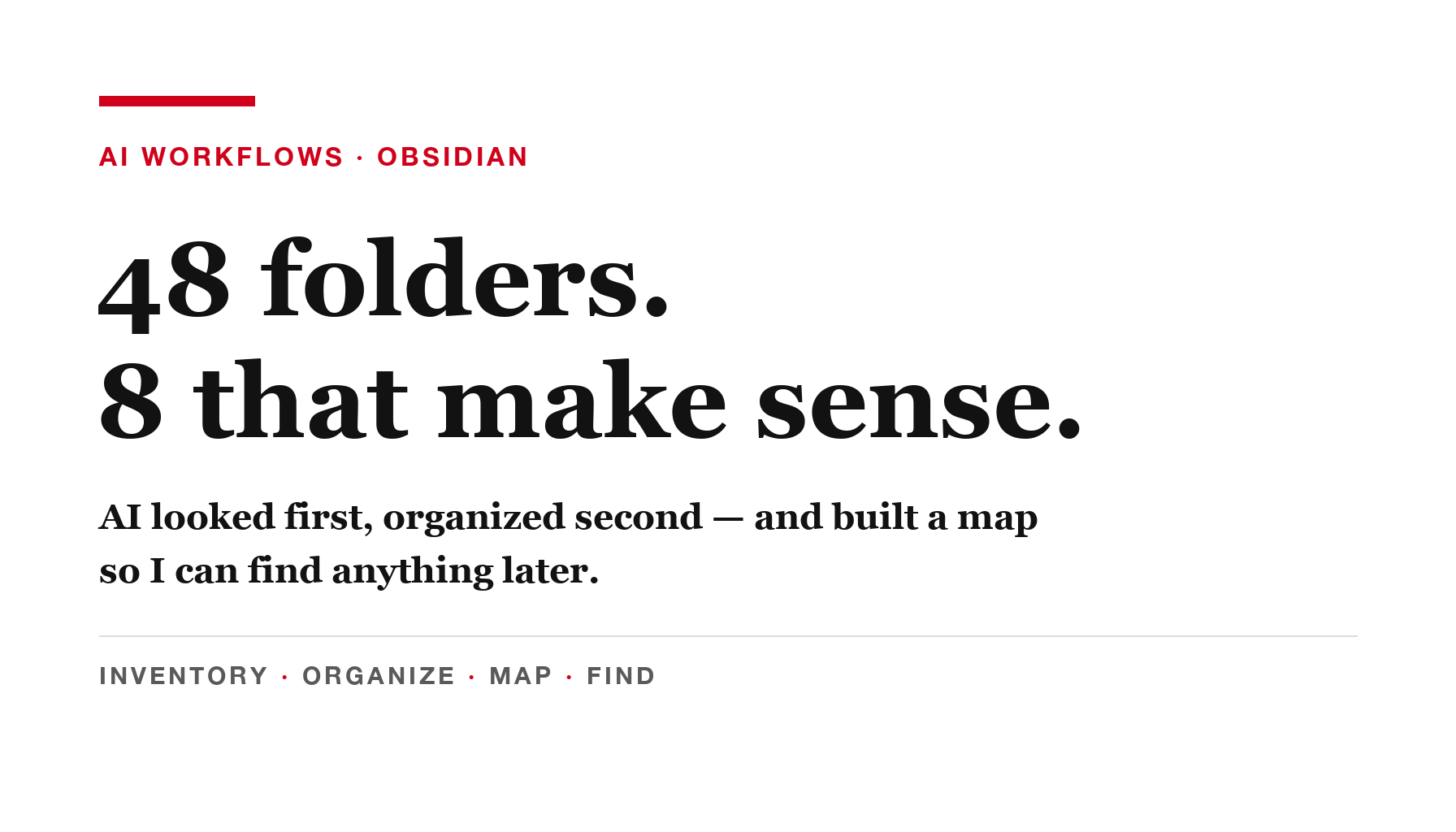
My Desktop had 48 folders on it.
Client work. Unfinished projects. Course materials. Videos. Twenty separate code projects. Old copies of my website I was afraid to delete because I wasn’t sure which one was live.
So I gave AI access to the folder. But I did not let it start moving things.
That’s the most important part of this whole process, and it’s the part most people skip.
Don’t start with “clean my Desktop”
If you tell an AI to clean up your computer, it will. That’s the problem.
A messy Desktop isn’t just clutter. Some of those folders are code projects that other apps point to. Some are client files. Some are video projects where the editing software remembers exactly where every clip lives. Move the wrong folder and something quietly breaks.
So the first prompt doesn’t change anything. It just looks.
Prompt 1 — Inventory only
Review everything on my Desktop without moving, renaming, or deleting anything. Create an inventory that identifies folders, files, Git repositories, duplicates, unfinished work, unusually large items, and anything that may be unsafe to move. Recommend six to eight broad categories based on the work you actually find. Show me the plan before changing anything.
Mine came back with a full report: 48 top-level folders, 20 Git repositories — including which ones had unsaved changes — and sizes for everything. I learned things about my own computer I didn’t know.
Approve the categories yourself
The AI suggested categories based on what it found. I adjusted them. Mine ended up as:
- Active Projects
- Client Projects
- Early Scholars
- Teaching and Research
- Content Production
- Knowledge and Documents
- Archive and Review
- My Obsidian vault
This is where you have to stay involved. AI can guess that two folders belong together. Only I knew that two different-looking folders were actually the same client. You know whose work is whose. It doesn’t.
Then organize — without deleting anything
Prompt 2 — Organize safely
Using the categories I approved, organize my Desktop. Do not delete anything. Preserve old paths for active projects when necessary, and verify afterward that Git repositories and saved project locations still work. Leave anything you cannot classify confidently in a clearly labeled review folder. Give me a summary of what moved and what you left alone.
Three rules are doing the heavy lifting in that prompt.
Nothing gets deleted. Anything uncertain goes into a dated “Review Before Deleting” folder. I look at it in a month. Nothing disappears automatically.
Old paths are preserved. Where an app expected a project in its old spot, the AI left a shortcut there. Everything kept working.
It checks its own work. After moving the code projects, it verified they still ran.
48 folders became 8.
We didn’t just hide the clutter. We created context that AI can search later.
Dr. Erin JacquesWhy Obsidian works so well with AI
A clean Desktop is nice. But in a month, I’d forget where things went. That’s where Obsidian comes in.
Here’s the part that surprised me: an Obsidian vault is just a normal folder full of plain text files. That’s it. No special database, no complicated integration. Which means any desktop AI you’ve given access to that folder can read it, write to it and search it.
So the setup works like this:
- Finder holds the actual files.
- Obsidian holds the map — what each project is, its status, where it lives.
- AI builds and updates the map.
- You just ask questions.
Prompt 3 — Build the command center
Create an Obsidian command center for my organized files. Make one note for each project with its category, status, location, and relevant links. Add a searchable table, a visual Canvas grouped by category, a project index, an append-only organization log, and a "Find Anything" page with a reusable search prompt. The actual files should remain in Finder; Obsidian should serve as the map. Before writing, show me the structure you plan to create.
Mine now has 55 project cards, a sortable dashboard (built with Obsidian’s Bases), a visual map grouped by category (a Canvas), and a log of every change that was made.
Find anything, even when you forget the name
This is the payoff.
Prompt 4 — Find anything later
Search my organized Desktop and Obsidian Project Command Center for [describe what I remember]. Tell me the most likely file or folder, where it is located, and open it for me. Do not move or delete anything.
I don’t need the filename. “Find the gardening videos I made for a client.” “Find the equipment comparison PDF from a few weeks ago.” “Find the project where I built the Blackwell page.” It finds it and opens it.
What you need — and one warning
- A current backup. Always, before you let anything touch your files.
- A desktop AI that can work in a folder — ChatGPT with Codex or Claude Desktop. You choose which folder it can see.
- Obsidian (free), if you want the map. The cleanup works without it.
And the warning: a cloud AI can read whatever you give it access to. Leave out medical, financial, client-confidential and password files unless you’ve deliberately chosen a private setup for them.
One more thing. I stopped at the first two of three levels of what’s possible here: AI reading my vault, and AI writing to it. The third level, where AI runs a whole knowledge base on its own, is powerful — but it also brings stale information and contradictions you have to manage. Start with the first two.
This is the kind of practical, real-work AI we build inside Leveraging AI: not just asking questions, actually getting things done.

Dr. Erin Jacques is a professor of informatics at the City University of New York and the founder of Leveraging AI and ChatifyIT, where she helps people build and monetize AI-powered web apps people pay to subscribe to.
Get AI News Weekly
How to build and monetize with AI, in one short email.