Come with: your Claude Code subscription. That's it, we'll do the rest together.
⚡ Important: Claude will ask permission a lot. Just click Approve / Yes to everything it asks. Don't overthink it.
1 Install VS Code
code.visualstudio.com
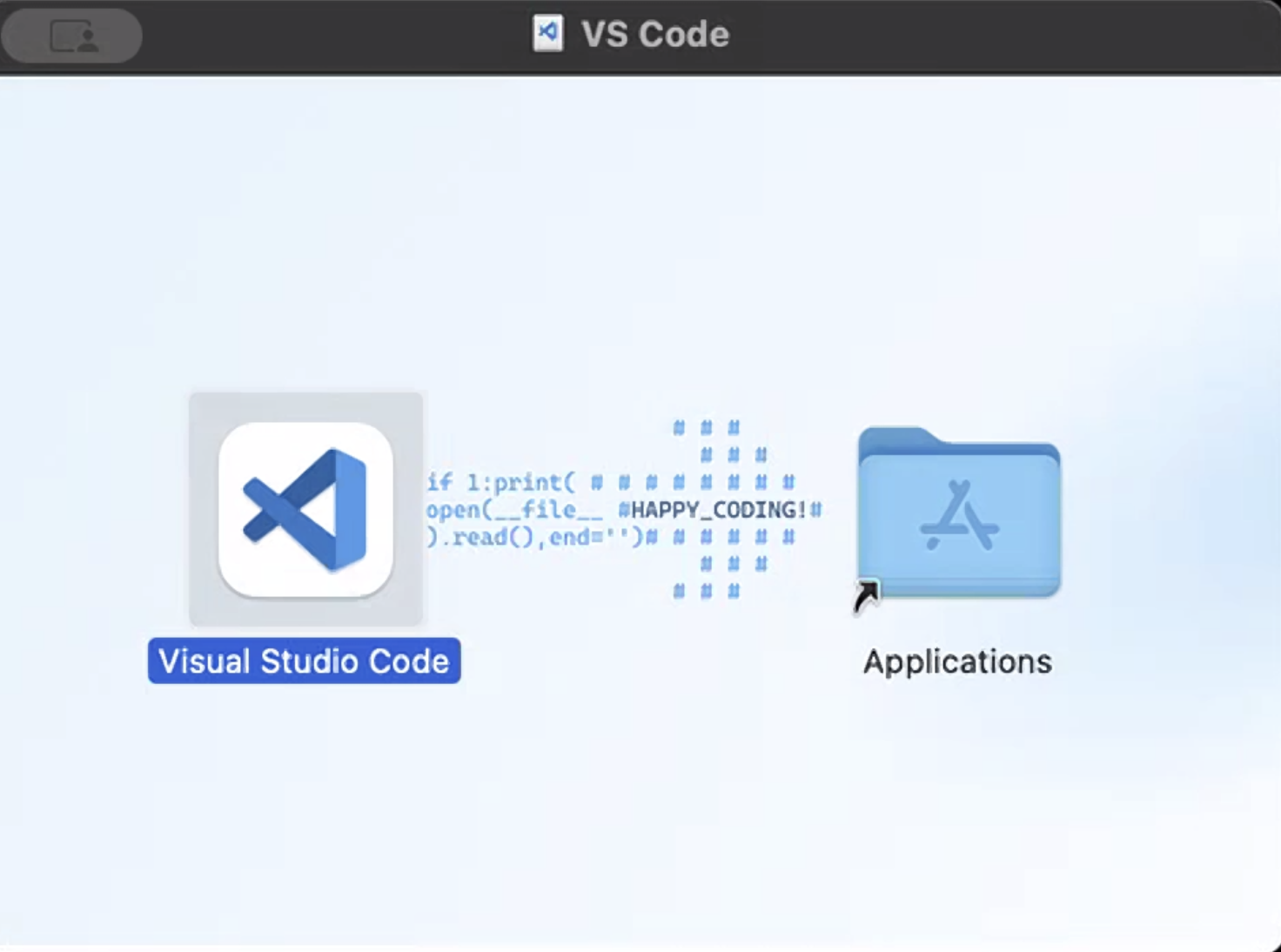
🍎 Mac Download Universal and open the downloaded file. A window pops up showing the VS Code icon and an Applications folder.
👉 You have to drag it in. Drag the Visual Studio Code icon on top of the Applications folder to install it. Then open VS Code from your Applications. If you see "are you sure you want to open it," click Open.
🍎 Mac: drag the icon onto the Applications folder.
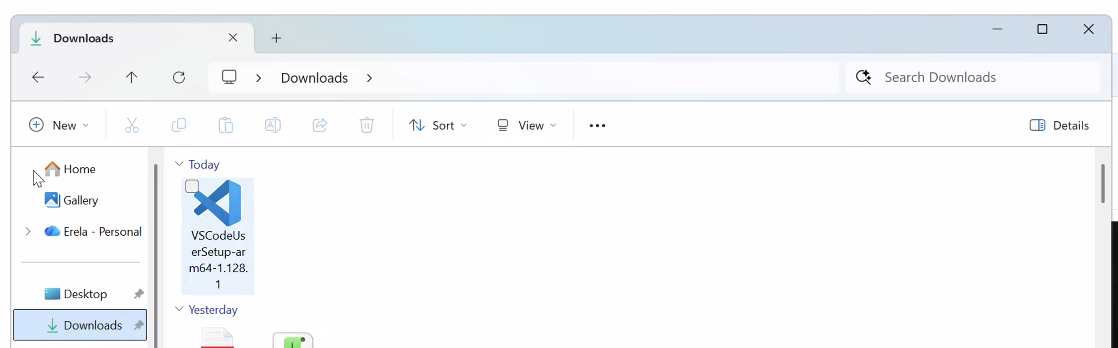
🪟 Windows: open File Explorer → Downloads, then double-click the VSCodeUserSetup file to run it.
If Universal won't open, pick Apple Silicon (M1/M2/M3) or Intel instead, check under Apple menu → About This Mac → Chip.
🪟 Windows No dragging, download the 64-bit User Installer, run it, and click Next → Install through it. If you see "Windows protected your PC," click More info → Run anyway.
2 Install the Claude Code extension
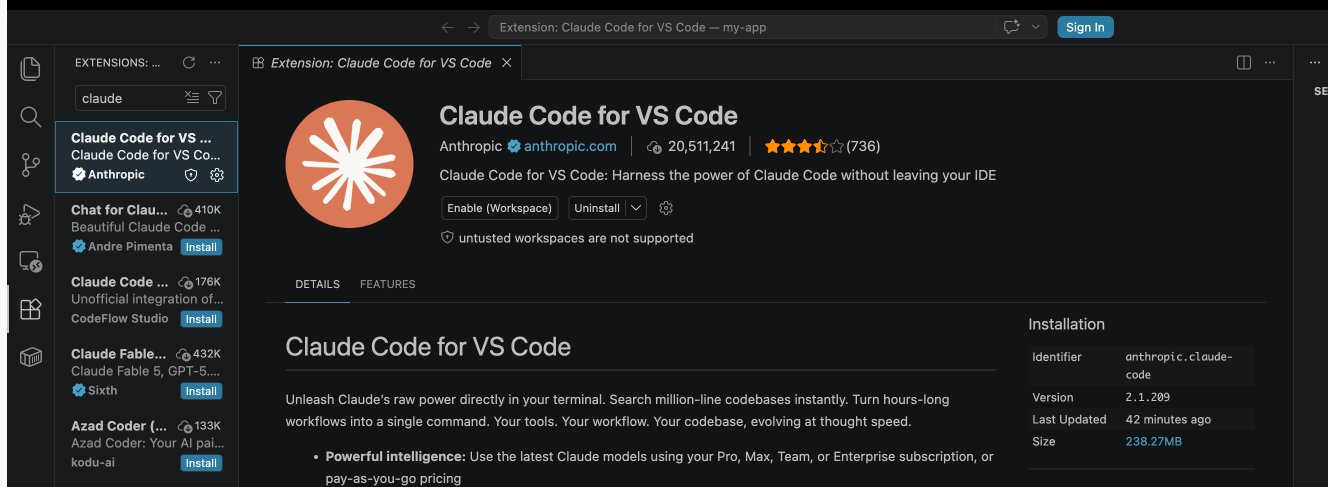
Click the Extensions icon on the left sidebar, search Claude Code, install the one by Anthropic (blue check), then sign in with your Claude account.
👉 If the extension page shows an Enable or Enable (Workspace) button, click it. A disabled extension won't show its icon, this is the #1 reason the Claude sunburst doesn't appear. Then it asks "Do you trust the authors of the files in this folder?", click Yes, I trust the authors and continue.
If you see "Enable (Workspace)," click it.
Same on Mac and Windows.
3 Create a free Vercel account
vercel.com
Sign up with email or Google (not GitHub). Nothing to download.
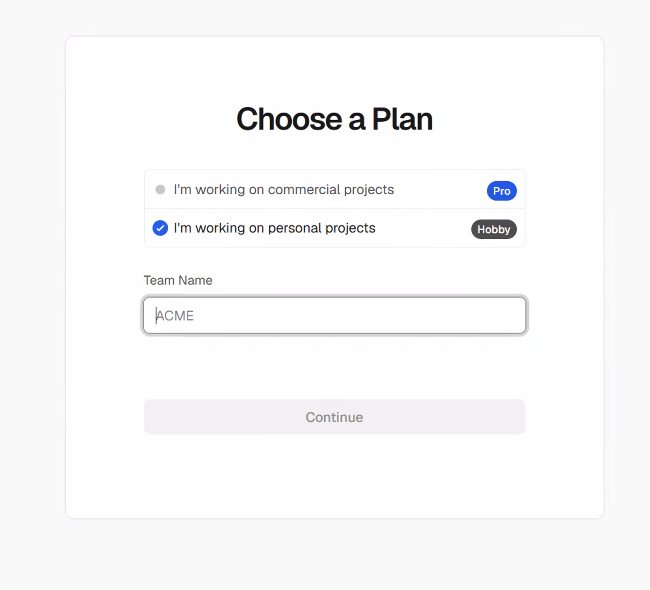
👉 When it asks you to Choose a Plan, pick "I'm working on personal projects" (Hobby), that's the free one. Then type any Team Name you want (it can be your name or anything) and click Continue.
Pick "personal projects" (Hobby), name your team anything, Continue.
Same on Mac and Windows.
4 Open a fresh folder
File → Open Folder, make a new empty folder on your Desktop (like my-app), and open it.
Same on Mac and Windows.
5 Open Claude Code
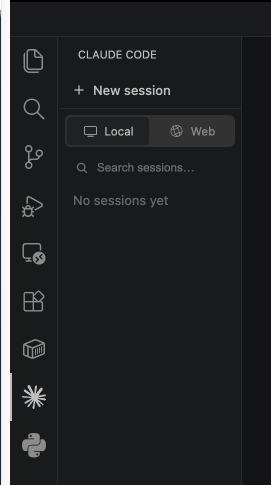
Click the Claude sunburst icon in the left sidebar (you don't need a file open).
👉 When the panel opens, make sure Local is selected (not Web), then click + New session. Local = Claude builds right in your folder, which is what you want. Now you're ready to paste your prompt.
Local selected, then + New session.
6 Build it
Paste this into Claude and swap in your expertise:
Prompt 1 — Build
Build me a simple landing page as an index.html web app for a [your expertise]. Include a hero section, my services, and my packages. Fill everything in based on what you know about me, and don't ask me any questions, just build it.
7 Put it live
Paste this into Claude. Then just keep approving everything it asks, and log into Vercel in the browser when it opens.
Prompt 2 — Deploy
Deploy this to Vercel. If I don't have Node or the Vercel CLI installed, install whatever is needed first. Make all reasonable choices yourself, don't stop to ask me what to do, and when you're finished, give me the live URL.
🎉 Open your live URL. That's the foundation of your app, a real landing page live on the internet, built by asking.
Now let's turn it into a business.
You just built the foundation. Next comes the part that pays you: logins so your people have real accounts, a database so your platform remembers them, and payments so you can charge a subscription.
That is exactly what we build together, step by step, inside the community.
Skip Universal and download the one that matches your Mac: Apple Silicon (M1/M2/M3) or Intel. Not sure which? Apple menu → About This Mac → look at "Chip."
I don't see the Claude sunburst / icon
Open the Extensions panel (four squares) and click Claude Code. If it shows an Enable or Enable (Workspace) button, click it, a disabled extension won't show its icon. Then the sunburst appears in the left sidebar on its own (you don't need a file open). If asked to trust the folder or reload, say yes.
It says a command is "not recognized" or "not found"
Just tell Claude: "Restart the terminal and try again." This usually happens right after Claude installs something new, and a quick restart fixes it. Claude handles it, you don't need to type anything yourself.
Claude keeps asking me to approve things
That's normal and safe. Just say Yes / Approve to everything it asks so it can keep working.
An install looks frozen or is taking forever
That's normal, especially on Mac. Let it run and don't touch it. Big installs (like Node) can take a few minutes.
A browser window opened asking me to log in
That's Vercel. Log in (or sign up, it's free) to your Vercel account, then come back to VS Code. Claude will keep going.
I got a security warning opening the app
Mac: "are you sure you want to open it?" → click Open. Windows: "Windows protected your PC" → click More info → Run anyway.
It finished but I don't see my URL
Ask Claude: "Did it deploy? Give me the live URL." It will hand you the link.
Do I have to pay for anything?
Just your Claude Code subscription. VS Code, a Vercel account (free tier), and everything Claude installs are all free.
What is Node.js, and why does Claude install it?
Node.js is the software that lets code run directly on your computer instead of only inside a web browser. The Vercel deploy tool is built on it, so it's the engine that tool needs to run. Most computers don't have it by default, so Claude installs it for you when it's missing.
What is a CLI?
CLI stands for Command Line Interface, which just means controlling a program by typing commands instead of clicking buttons. The "Vercel CLI" is the typed-command version of Vercel that Claude uses to push your app live. Same Vercel, just the version a computer can operate by command.