

Claude's Cowork mode can organize a cluttered desktop by grouping related files into folders, renaming them with consistent naming conventions, archiving old screenshots, and flagging junk for you to review — all from a single prompt. Cowork is available on Claude Pro, Max, Team, and Enterprise plans on both Mac and Windows.
If You Have a Tinge of ADHD, Your Desktop Looks Like This
If you have a tinge of ADHD in you, your desktop looks like THIS after a day of work. Which is a byproduct of hyperfocusing on your actual work and not stopping to organize anything along the way. Your brain was busy. Your desktop paid the price.
Screenshots named Screenshot 2026-02-23 at 3.41.12 PM.png. PDFs you opened once. Downloads you swore you'd organize "later." By 5pm it looks like someone emptied a filing cabinet onto your screen and walked away.
The problem isn't that you're disorganized. Your brain correctly prioritized the work that mattered. But now you're staring at 50 random files and the thought of sorting through them makes you want to close your laptop and deal with it tomorrow — which is exactly what you said yesterday.
The One Prompt That Cleans Everything
Anthropic's Cowork feature, built into the Claude desktop app, lets you point Claude at any folder on your computer and give it plain-English instructions. Here's the prompt I use every day:
Here's what happens: Claude reads your file names, types, sizes, and dates to figure out what belongs together. Invoices go in one folder. Meeting notes go in another. Those 47 screenshots get swept into a Screenshots Archive — not deleted, just out of the way.
It renames files too. Document (3).pdf becomes 2026-02-23-project-proposal.pdf. So when you need something three weeks from now, you can actually find it.
And the best part — Claude gives you a list of everything it thinks is junk and lets you decide. It never deletes anything on its own. You stay in control.
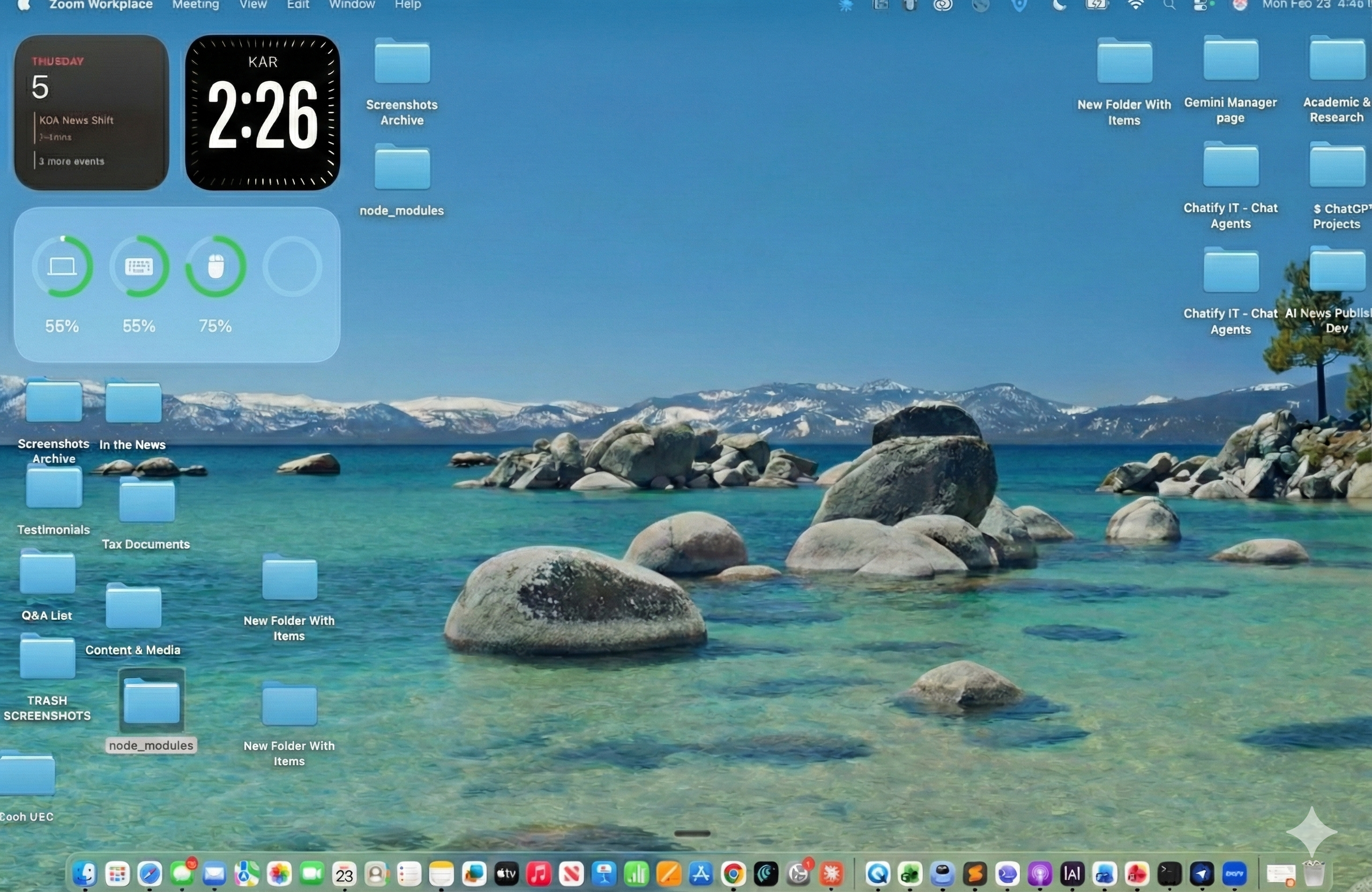
This is what AI should be doing — the boring, low-dopamine stuff that drains your time and makes you feel disorganized. If you're still manually dragging files into folders in 2026, you're spending time on a task an AI can finish in 30 seconds. That's time you could be spending on things that actually move the needle.
How to Set It Up
You need the Claude desktop app — this doesn't work on the web. Cowork is available on Pro ($20/month), Max, Team, and Enterprise plans, and it runs on both Mac and Windows as of February 2026.
Open Claude Desktop. Click the Cowork tab. Select your Desktop folder. Claude asks for permission to read and move files — you approve. Type your prompt. Watch it work.
A few things worth knowing: Cowork runs in an isolated virtual machine on your computer, so nothing gets uploaded to the cloud. Claude can only touch folders you explicitly grant access to. And sessions don't carry memory — every time is a fresh start.
Make it a daily habit. End of your workday, before you close your laptop: open Claude, run the prompt, review the junk list, done. Your ADHD brain did the real work all day. Let Claude handle the cleanup.
One prompt. Thirty seconds. Clean desktop. Nothing deleted without your approval. It's not the AI use case that makes headlines — but it's the one that saves you 20 minutes every single day. And for anyone whose brain is wired to hyperfocus on the work and ignore the mess, this is the assistant you didn't know you needed.